# Singular Integration
### Step 1: Integrate Aarki as a partner
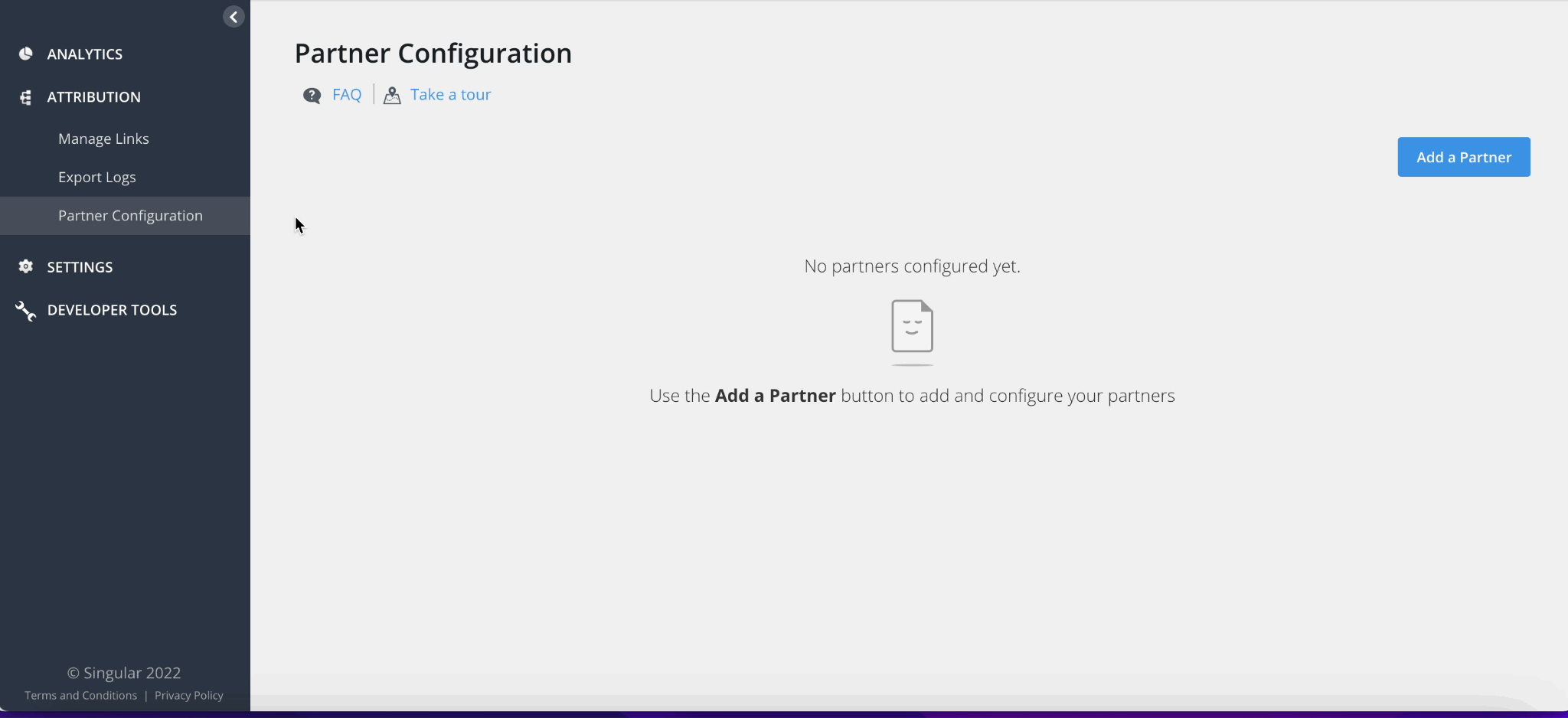
To add **Aarki** as a partner in your **Singular dashboard**, follow these steps:
1. Go to your **Singular** dashboard.
2. Click **ATTRIBUTION** > **Partner Configuration**.
3. Select **Add a Partner**.
4. Choose **Aarki** from the list.
### Step 2: Setting up an App/site
To add the **app and site (app version)** for your campaign, follow these steps:
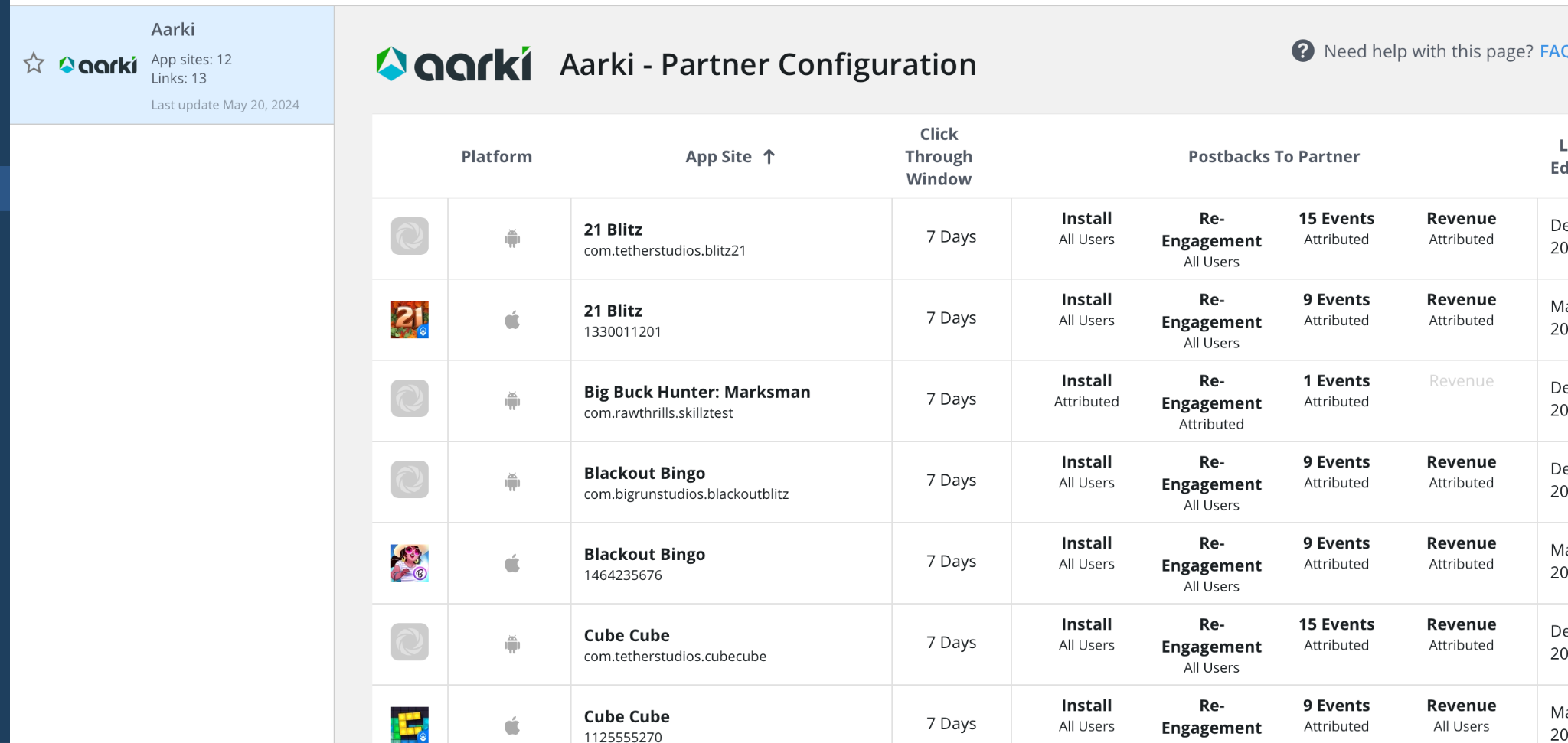
1. On the **Partner Configuration** page, click **+ Add App Site**.
2. In the **App** drop-down, select the **app** you want to run the campaign for.
3. In the **Site** drop-down, select the **latest version** of the app.

1. Mark the **Include View-Through Attributions** box if it is not already selected. This option enables the attribution of impressions.
2. Mark the **Enable Fraud Postbacks** box if it is not selected by default.
3. Mark the **Send Postbacks to Aarki on All Installs** box. This option helps optimize Aarki's machine-learning models for precise targeting by sharing unattributed data.
4. Keep the **Click-Through Attribution Lookback Window** at the default value (**7 days**). This is an industry-standard value, and changing it may result in inaccurate reporting.
5. In the **Send In-App Events to Aarki** drop-down, select **On**. This option enables the attribution of all events that occur throughout the campaign.
### Step 3: Configure Postbacks
1. For In-App Postback Events, select the **starting point** and set up the **postback window duration.**
2. If the client sets the conversion flag to 0 during the in-app postback event setup, both Aarki-attributed(install claim) and non-attributed events can be included in the postbacks for that specific event

**Note:** To ensure accuracy in ad revenue reporting, make sure the `{RAW_AMOUNT}` macro is used in the `purchase_revenue` parameter of the postback URL instead of `{AMOUNT}`. Using `{AMOUNT}` may cause values less than 0 to be rounded to 0, resulting in data discrepancies.
To verify this configuration, go to the **In-App Event Postbacks** section and select the highlighted option (as shown in the screenshot) to view the configured postback URL.
### Step 4: Cost Integration
For Aarki, we have a data connection with Singular, which enables us to share cost data using an S3 bucket.
For more details on the fields shared, please refer to the link below:\
[Singular Aarki Data Connector](https://support.singular.net/hc/en-us/articles/360041181092-Aarki-Data-Connector)
**Note**: If cost data is missing, please be aware that Singular retrieves data daily for the last seven days. If the issue date falls within this seven-day timeframe, the data issue should be resolved automatically.
### Step 5: Audience Integration
1. Navigate to **Audiences** > **Distributions**: This section lists all available audience partners for distribution.
2. Click on the Desired Ad Network: Select the ad network (e.g., Aarki) where you want to distribute your audience segment.
3. Enter the **Provided Token**: In the Network Configuration dialog that appears, input the token in the designated field.
4. Configure Segment Settings: Under the Segment Configuration section, you'll see a list of your audience segments.
5. Enable the Segment: Toggle the switch to enable the segment you wish to distribute.
6. Save the Configuration: After configuring the necessary settings, click Save to finalize the distribution setup
This document outlines the complete setup details required to configure your Singular account. Please review each section carefully and follow the outlined steps to ensure accurate tracking, attribution, and reporting.
If you need any help with the configuration document, feel free to reach out to your **Aarki Account Manager/Account Coordinator** for assistance.
Conversion flag difference b/w 0 and 1 and send all : Ensure for each event the conversion flag is set to 0 and not 1.
Define the process to add the s3 bucket folder on singular UI
Once your partner is ready to deliver reports via s3, you will need to setup a Data Connector in Singular to enable data processing.
* Go to Settings > Data Connectors in your Singular account.
* Click Add a New Data Connector and enter the partner's name.
* In the New Connector window, fill in the Folder Name--this should match the folder your partner created within the s3 bucket to deliver your reports. ( Ask Aarki account manager to provide the folder name )
* Click Save.